
Just want to do a quick write up of my Audiobookshelf Self Hosted with Tailscale and an mobile app Plappa (with CarPlay !)
Setting up Audiobookshelf Self Hosted with Tailscale on a Docker
As usual, I use Portainer to set up Audiobookshelf Self Hosted with Tailscale on a docker. Once again, I made use of Marius Hosting article but made a little change only.
Step 1 : Create the folders needed in the Docker folder
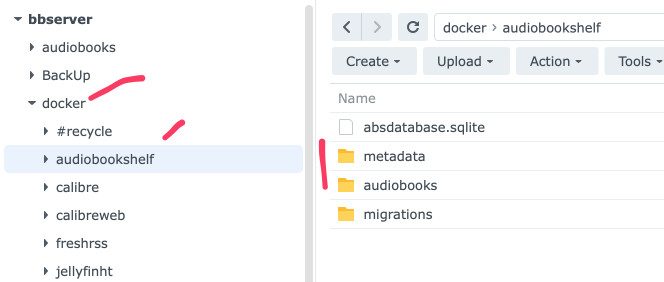
Step 2 : Create the audiobooks shared folder in the Synology Shared Folder
Just like hosting my ebooks in Calibre docker, I don’t want to keep my audiobooks in the docker folder but in a separate (shared) folder in the root of Synology.
So I set up a shared folder in Synology

Step 3 : Create docker compose file in a new stack in Portainer
You can refer to Marius Hosting article on how to do the new stack in Portainer but I assumed you are pretty familiar. I just copy and paste his code with one change in BOLD.
Here is my code
services:
  audiobookshelf:
    container_name: Audiobookshelf
    image: advplyr/audiobookshelf
    healthcheck:
      test: ["CMD-SHELL", "nc -z 127.0.0.1 80 || exit 1"]
      interval: 10s
      timeout: 5s
      retries: 3
      start_period: 90s
    mem_limit: 4g
    cpu_shares: 768
    security_opt:
      - no-new-privileges:true
    restart: on-failure:5
    ports:
      - 13378:80
    volumes:
      - /volume1/docker/audiobookshelf:/config:rw
      - /volume1/audiobooks:/audiobooks:rw
      - /volume1/docker/audiobookshelf/metadata:/metadata:rw
The main change is the audiobooks is linked to the shared folder, Audiobooks, created separately from the Docker folder.
– /volume1/audiobooks:/audiobooks:rw
Step 4 : Add TSD Proxy Label to Portainer
To make it possible for Tailscale to work with Audiobookshelf (the usual full URL with https), of course, I need to add “tsdproxy.enable” label with “true” to the Portainer set up. See this article (TSD Proxy) for more information.
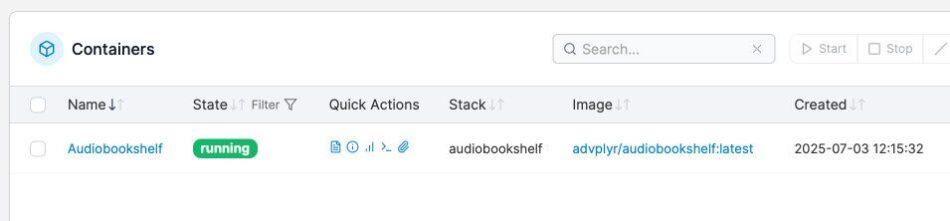
Step 5 : Deploy the Stack
And magic ! Audiobookshelf installed in your Synology Docker.
Step 6 : Approve Audiobookshelf app in Tailscale
You will need to go to Tailscale Console to approve the use of Audiobookshelf as a node in Tailscale. You can then find the full URL for the application there too.

Setting up my Audiobookshelf
To log on to your Audiobookshelf, you can use the Tailscale URL. Alternatively, it will be your Synology IP with the port number (13378) you set in the Docker Compose file.
After you have set up an account, and logged on, you will see this..

I choose Audible.com as my Metadata Provider. Then click on “Browse for Folder”.
You should see your shared folder “audiobooks” in the dropdown. (Regret never naming it something else clear e.g. sharedaudiobooks so we can differentiate that this is the right folder compared to that one in the docker).

In the settings, I choose to keep my metadata and cover with the audiobooks. You can decide if you want to just keep it in the original “metadata” folder in the Docker folder. I also try to use Audible.com to find my covers

As I already have some audiobooks in the SHARED Audiobooks folder, once I click on SCAN, it picked up all my audio books.

If you go to the individual audiobook folder, you can see the meta data and covers with the audiobook itself.

Yippppeee
Using Plappa with Audiobookshelf Self Hosted with Tailscale
Plappa is a mobile app frequently recommended for use with Audiobookshelf. It works well.
The first screen is where you need to enter the IP address with port number of the Audiobookshelf. But of course, I choose to use it with Tailscale URL.

Once I enter my user name and password, it just works…

Using Plappa with CarPlay
And yes it has CarPlay ability which is how I listen to my Audiobooks when driving…..

(yes, that’s PlexAmp app also in CarPlay, which plays the FLAC music from my Plex music library, also self hosted and accessed via Tailscale)
Not sure why but the home page is empty

But the BOOKS page is fine 🙂

And off, we go, we can listen to your own DRM free audiobooks on the go

Apparently it also works with Apple Watch but I have not tested it. Maybe when I go hiking or jogging or something 🙂
Conclusion
If you like hosting your own stuff and listening to audiobooks, Audiobookshelf is a must :). It is very easy to set up Audobook shelf on Docker on Synology. You can then access it anywhere in the world with Tailscale (my preferred way of accessing self hosted apps but you can try many other reverse proxy methods etc).
[Update in May 2026] : I have started to use Pangolin (instead of Tailscale) to access my Audiobookshelf using a custom domain. It works really well too. I am using a cross platform audiobook listening app called Absorb which also works really well 🙂
Life is always changing and so does using IT and apps. Even listening to YouTube can be done on a UMEVO Note Plus AI Voice Recorder 🙂