I wanted to try out Pangolin, which is an open-source remote access platform built on WireGuard that enables secure, seamless connectivity to private and public resources. So this article is about my feeble attempt to run Pangolin on Oracle Cloud.
It is like Cloudflare Tunnel, in that it is a reverse proxy and allows you to access your home network from outside the home network. You can run Pangolin at home but for safety sake, it is probably better to run on a VPS. You can run Pangolin on VPS such as Digitalocean, Racknord, but I wanted to try out the FREE Oracle Cloud.

Table of Contents
Why Pangolin on Oracle Cloud ?
Oracle Cloud has Singapore VPS servers to choose from (just like DigitalOcean or Contabo) but the latter do cost money. Some like Hostinger does not even have a Singapore VPS server (their nearest is Malaysia data centre). Racknord (highly recommended in USA because it is cheap and good) does not even have shared VPS in Singapore.
And of course, I was told that Oracle Cloud is free. FREE IS GOOD.
What do you need to start using Pangolin
You will first need to buy a domain (just like Cloudflare Tunnel). Ironically, I bought my cheap (meaningful) domain from Cloudflare. You must be able to set up DNS records for this domain as you will be pointing your domain to the Oracle Cloud VPS public IP address.
Creating your Oracle Cloud VPS
After you set up your Oracle Cloud account (and supply a credit card for a quick verification charging of SGD1.38 which means USD1 ?), you can then go ahead and create a virtual machine.
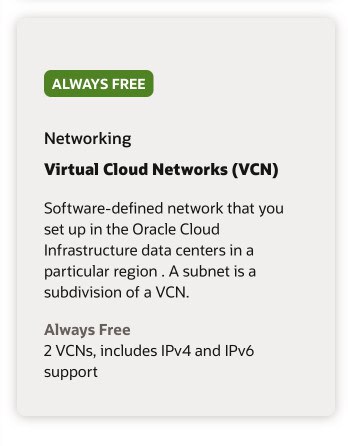
What is FREE in Oracle Cloud
It might be good to create a Virtual Network first. It also say it is free 🙂
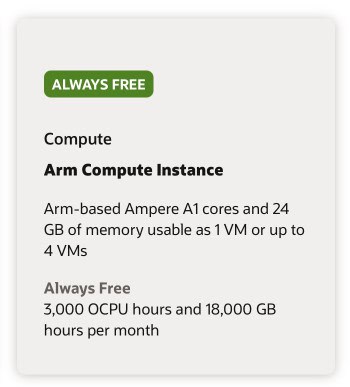
Then follow by a Virtual Machine.
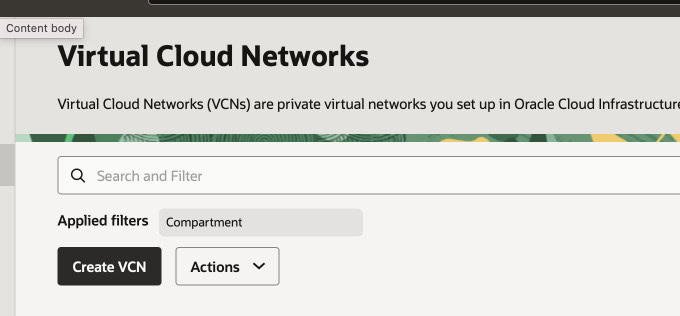
Creating a Virtual Cloud Network
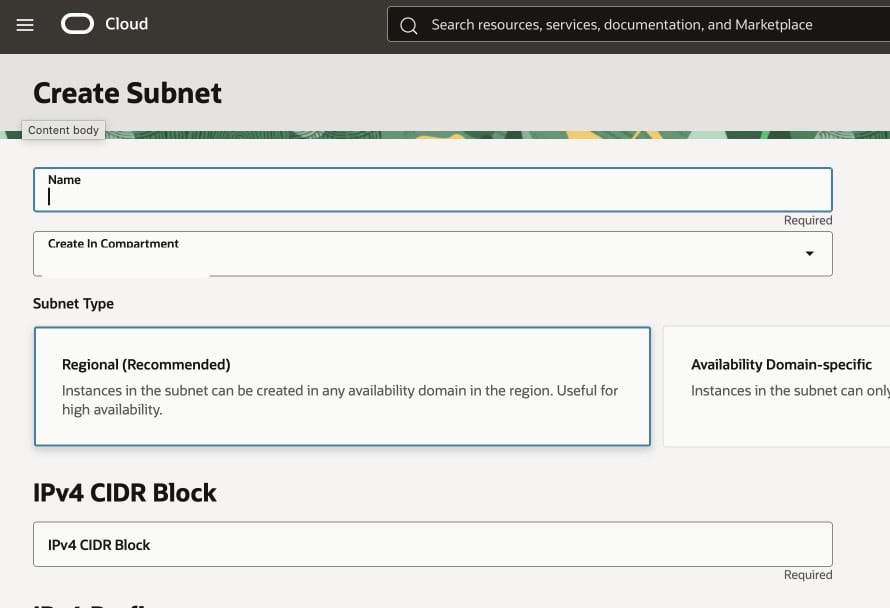
You will use Virtual Cloud Networks/Create VCN to create a VCN. Choose the 10.0.0.0/16 default as your IPv4 CIDR Block.
After creating a VCN, you also need to create a SUBNET. Choose the default 10.0.0.0/24 as your IPv4 CIDR Block. Don’t ask me what they mean. I just blindly follow Youtube videos.
Once the VCN and subnet are created, you can go ahead and create the Virtual Machine.
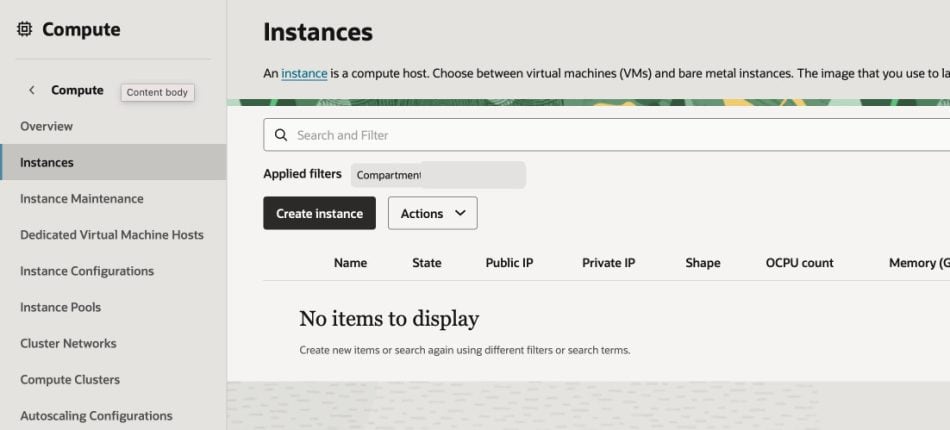
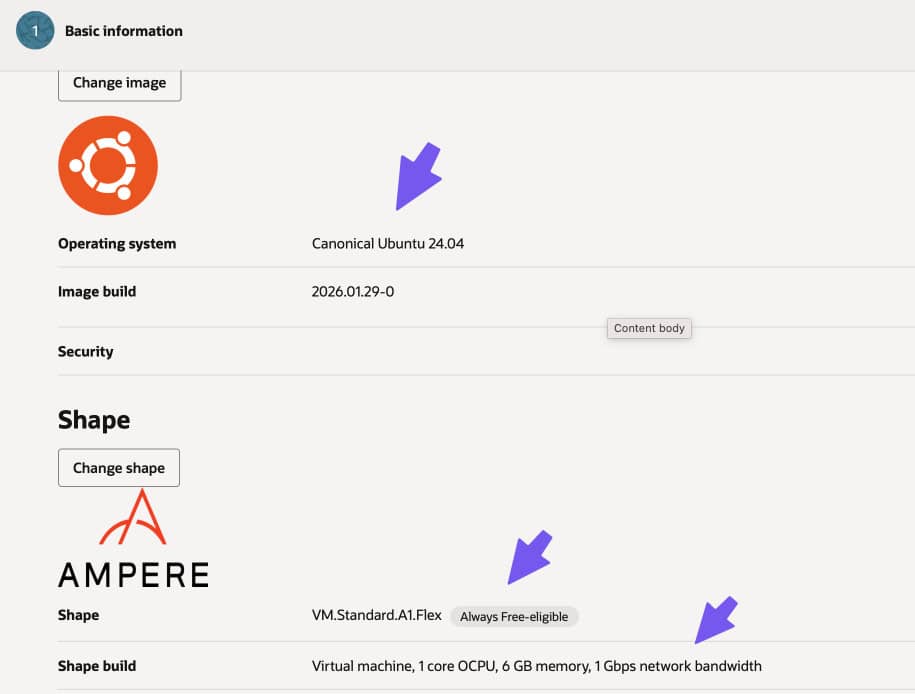
You can then choose your OS and your size (or shape) of your instance. FREE IS KEY !
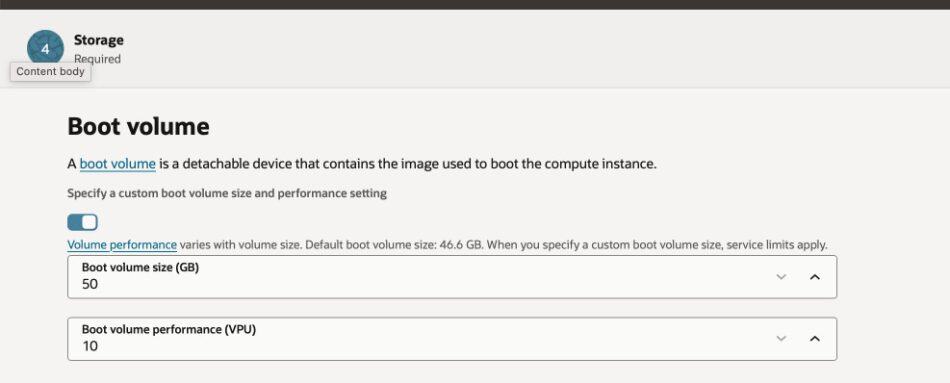
When creating your VPS, you might also want to take the chance to upgrade your storage to at least 100GB (up to 200GB free). This is done at the BOOT VOLUME setting. It is pretty easy to miss it.
I am not sure if I need to upgrade to “Pay as You Use” to enjoy even better virtual machines or that there are no bigger machines around in Singapore. Initially I struggled to get a free VPS as it kept saying there is no free capacity. You might need to play with the different settings of the VM (e.g. increase the CPU or decrease the CPU, increase the memory or decrease the memory). It is no fun.
I only managed to get the free VPS after I upgraded to Pay As You Use. YMMV.
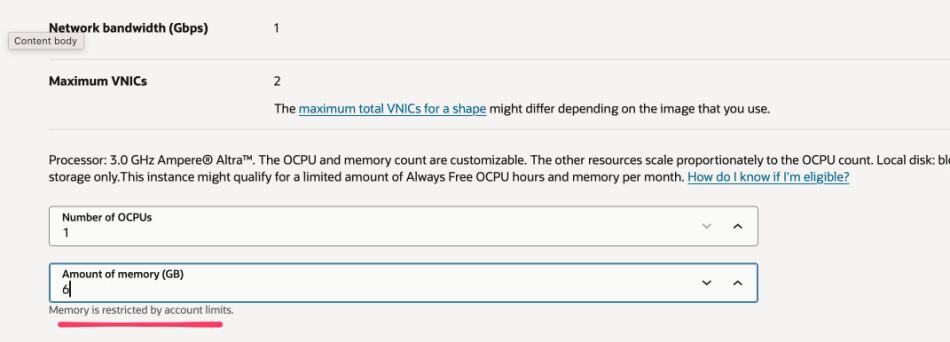
I choose Ubuntu 24.04 as the operating system (as it say FREE on the screen) and then an AMPERE Virtual Machine VM.Standard.A1.Flex of 2 Core and 8GB memory as it also say “Always Free”. I am a cheapo.
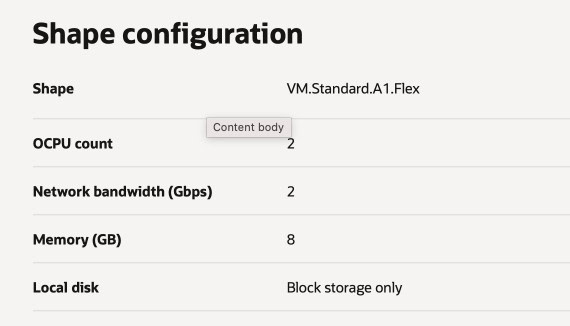
Okay. Anyway, I got my VM provisioned pretty quickly 🙂
Expose Oracle VM to Internet
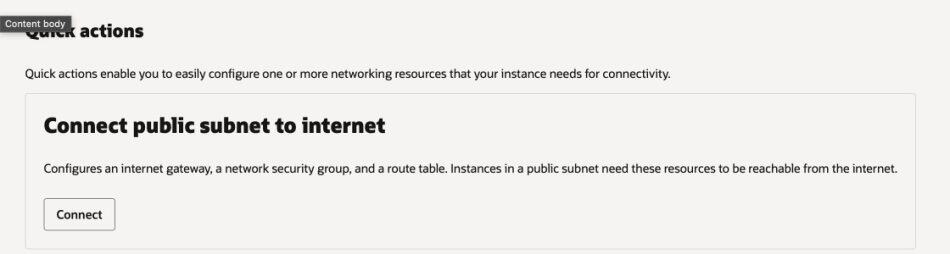
After the VM has been created, you will want to “expose” the VM to the internet. To do that, go to your instance, click on Networking, scroll down to the end and then “Connect public subnet to the internet”.
Setting up your SSH keys
Oracle Cloud is quite particular about how your private SSH keys are secured. Read more about it here. Basically you need to CHMOD the directory and the file itself.
Use the following SSH command to access the instance.ssh -i <private_key_file> <username>@<public-ip-address>
<private_key_file> is the full path and name of the file that contains the private key associated with the instance you want to access. For mine, it is~/.ssh/id_rsa
<username> is the default username for the instance. For Oracle Linux and Redhat Enterprise Linux compatible images, the default username is opc. ForUbuntu images, the default username is ubuntu.
<public-ip-address> is the instance’s IP address that you retrieved from the Console.
Do the usual LINUX Hardening Steps
Don’t rush to set up your Pangolin instance ! Do the usual Linux hardening steps as many in the internet has advised such as updating your Linux with apt get update, removing the Root account, changing the default SSH port and then setting up Fail2Ban etc.
Okay. We are ready now !
Installing Pangolin on Oracle Cloud
To deploy your own fully self-hosted instance of Pangolin, you can go to this link.
Step 1 : Download the installer
curl -fsSL https://static.pangolin.net/get-installer.sh | bash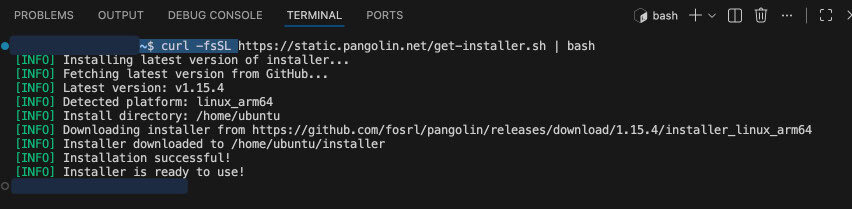
Step 2 : Execute the Installer
sudo ./installerOnce I start the installer, it mentioned I need to open the ports in Oracle VPS.

I am not sure if I need to do so in the iptables configuration so I tried to start by doing in the GUI of Oracle Cloud VPS Virtual Cloud network security rules. (Note. I did NOT have to update the iptables configuration).

As the installer goes on, most of the questions are normal. But for the first time, I am seeing this question whether the Oracle Cloud VPS is IPv6 capable. I checked AI and yes it is. And then the next question is on MaxMind Country Database. Never saw all these in Youtube videos so I assumed these are new questions. YES LAH> TRY MY LUCK 🙂

It knows that I did not have docker installed and then off it goes…
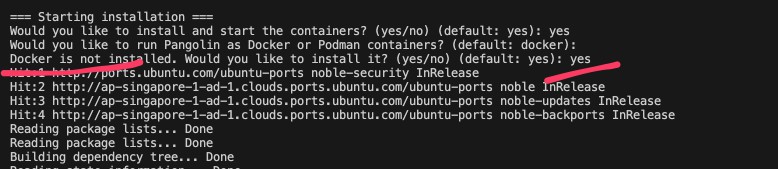
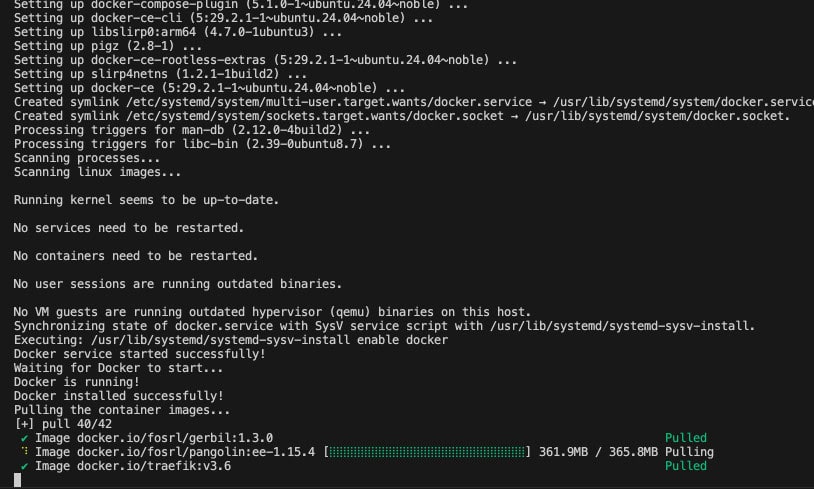
The next question is hard.. I debated for a long time and finally decided yes. If all things fail, just redo. The magic question is to install Crowdsec or not. I chose yes and hope I don’t regret it.
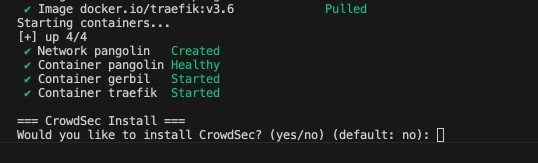
And when it is done, it will create a set up token !
Waiting for Pangolin to generate setup token...
Setup token: xxxxxx

This token is required to register the first admin account in the web UI at:
https://pangolin.xxxx.me/auth/initial-setup

Save this token securely. It will be invalid after the first admin is created.

Installation complete!

To complete the initial setup, please visit:
https://pangolin.xxxx.me/auth/initial-setup
Step 3 : Go to set up your DNS records
But before that, we need to go and set up DNS records. For me, that’s Cloudflare DNS.

And after that, let’s set up the Wildcard Domain Certificates as we will be hosting multiple subdomains. The place to make the changes is in the traefik_config.yml and the dynamic_config.yml files. Read the instructions carefully. Be very careful with formatting and spacing and tabs.
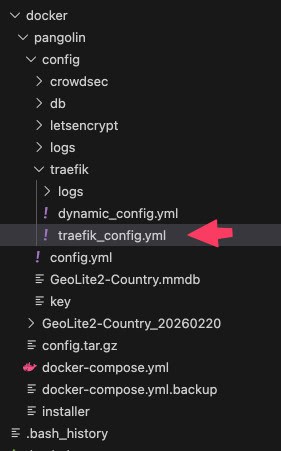
You also need to update the docker-compose.yml.
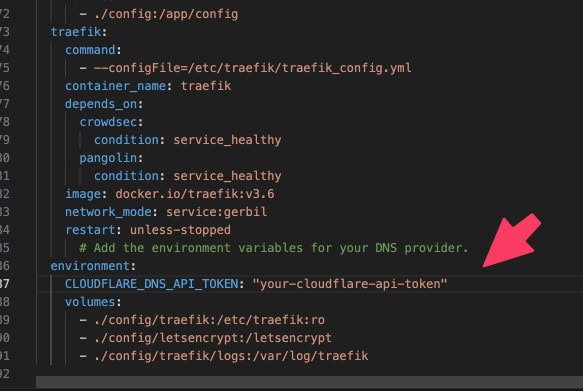
You will need to go grab the Cloudflare API token then.
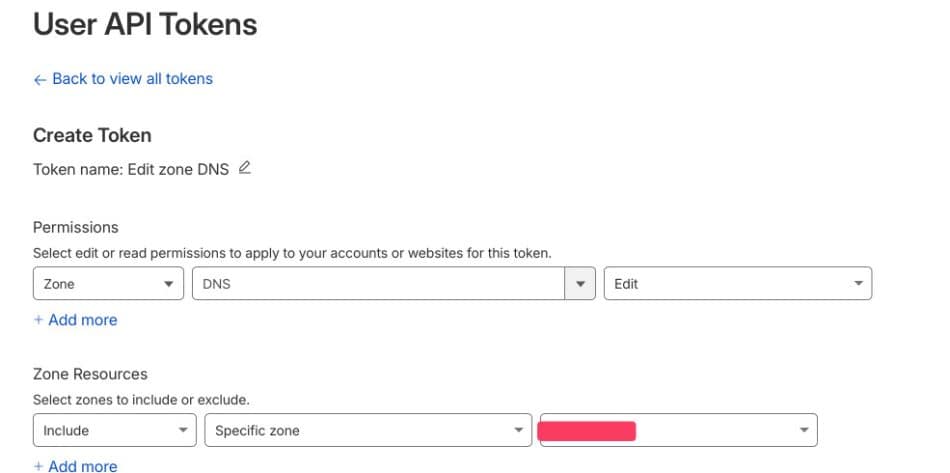
To save the 3 files above, you might also need to give permission to overwrite the files. An example is :
sudo chown ubuntu:ubuntu config/traefik/traefik_config.ymlAfter that, do a
sudo docker compose down
and then a
sudo docker compose up -d (the “-d” is important)
And then PRAY HARD to all the GODS that it work…
Step 4 : Log On to your Pangolin
If the above is done correctly (and you might have as there are formatting mistakes sometimes in the yml files etc. Even a single formatting issue can cause the web site to fail such as 404 or GET failure)…. else you will see this…..
YIPPPPPEEE. If you can see this with a proper SSL certificate, this means installing Pangolin on Oracle Cloud has worked !
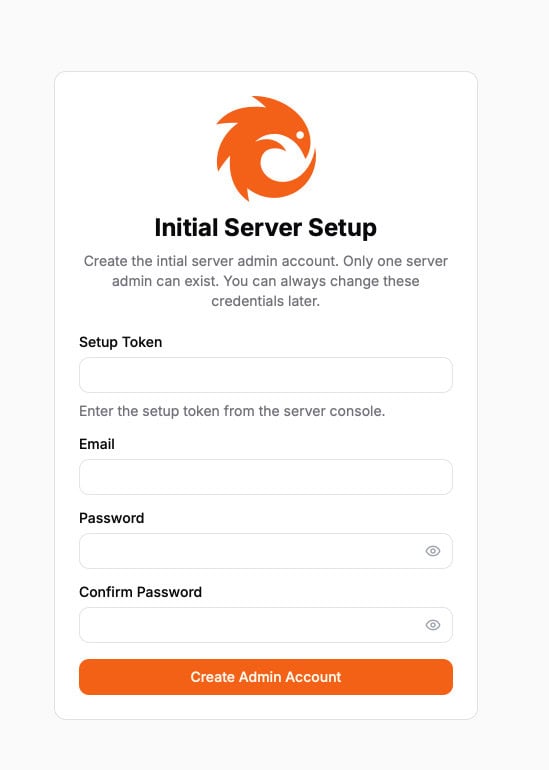
With the set up token, you will now be able to log in and see this screen !
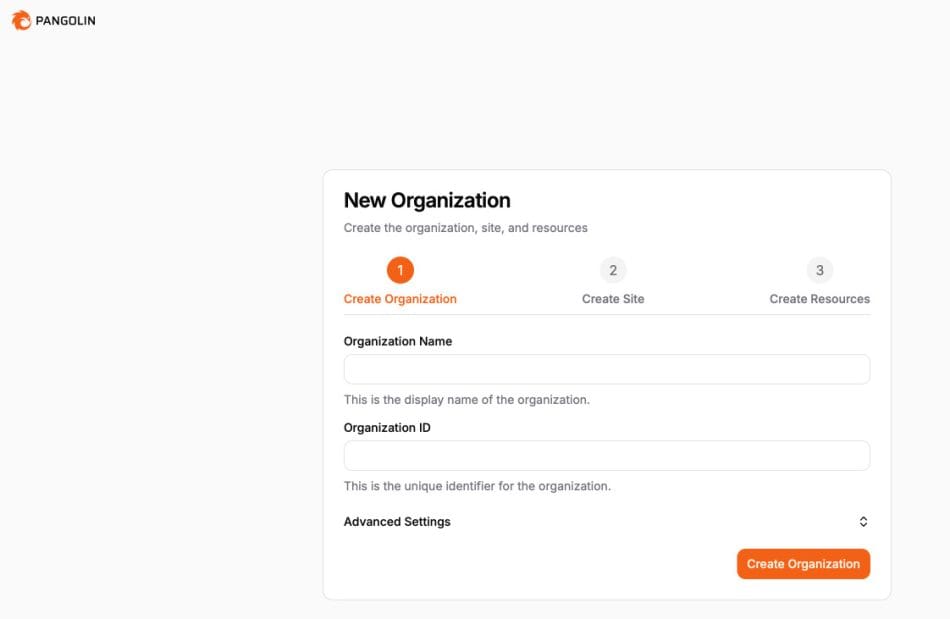
Once you log in and if you really really want, you can “upgrade” the version to an enterprise version. Get your license key at https://app.pangolin.net and then come back to YOUR own pangolin instance.

Step 5 : Set up an Organisation and a Site
Think of the Organisation as YOU and a site as a location where you want your Pangolin to be able to act as a reverse proxy to. So usually the SITE is your home server e.g. Synology server.
Step 6 : Set up NEWT as your end point in your site
So basically why you are doing Pangolin is to “expose” your internal applications (just like using Tailscale Magic DNS) to the public. So what are these internal applications. They could be things like Jellyfin, Calibre Web, Linkding, FreshRSS etc). You now need to set up an agent sitting in your home (e.g your Synology where the self hosted apps are) so that it can establish a tunnel between your home and the external world. That agent is called Newt.
To do that, I will use Portainer to set it up.
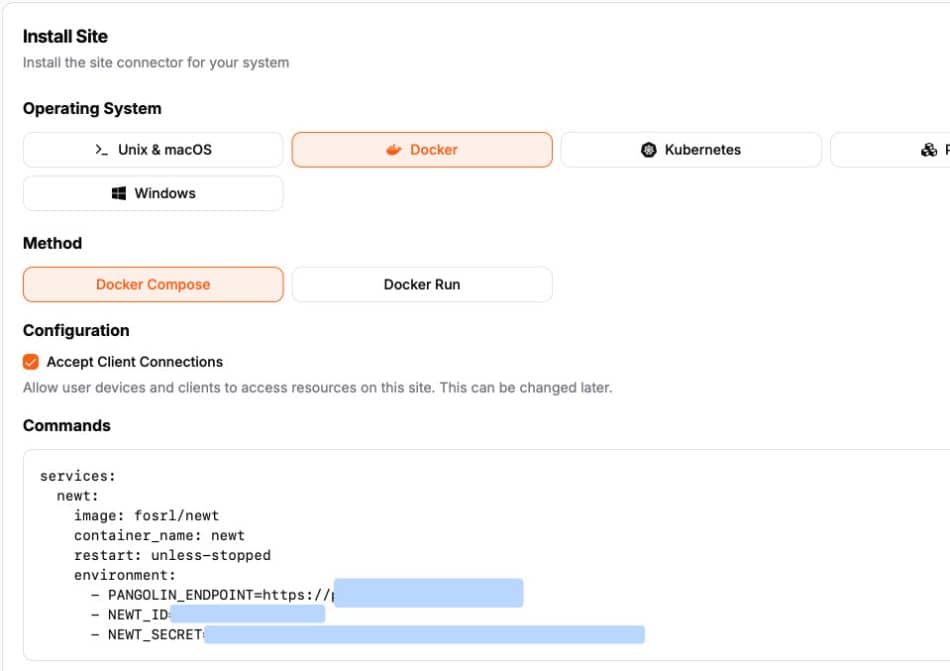
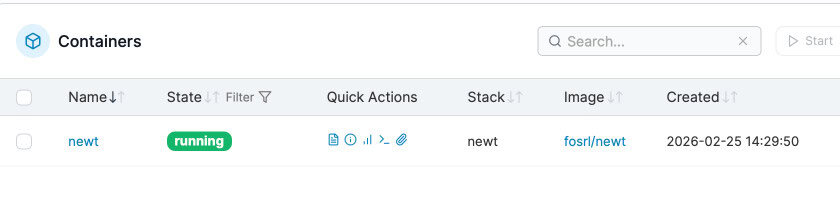
Using Portainer, I easily set up the Newt.
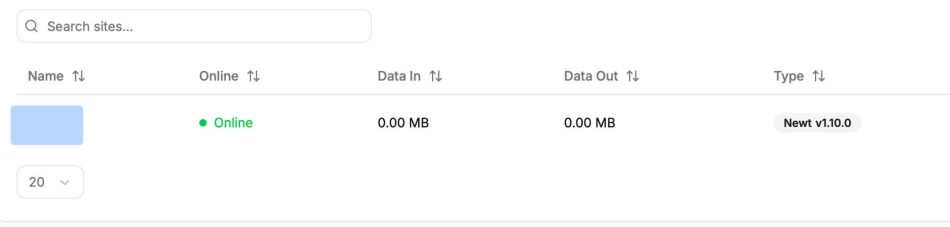
And when you go back to Pangolin, your site is online !! That means the tunnel between Pangolin and your home server is alive and kicking !!
Step 7 : Set up a Resource and Point to It
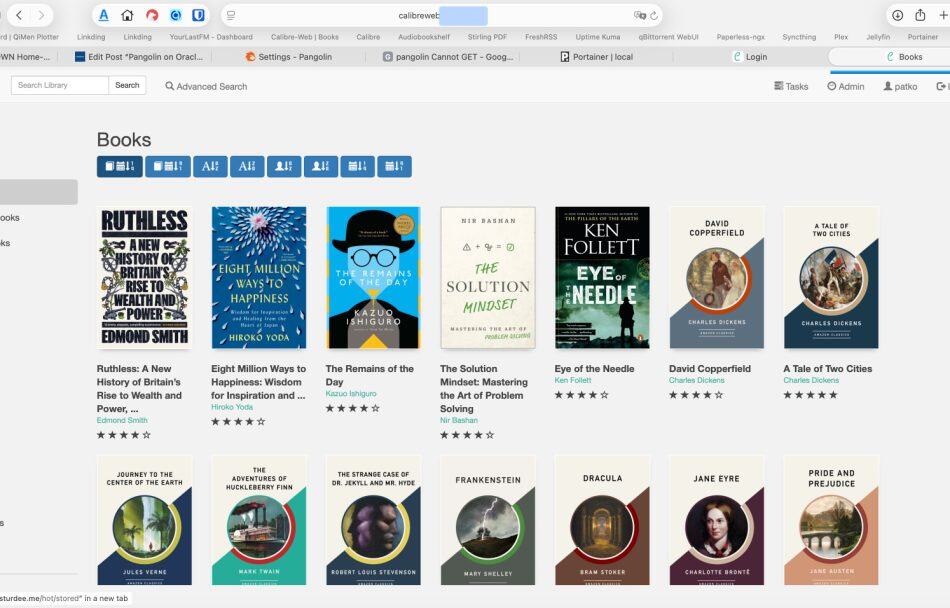
Here’s the fun part. Let’s say now I want to expose my Calibre-Web library to the world. To do that, I will create a public resource and link it to the internal IP address and port of Calibre Web. Like this.
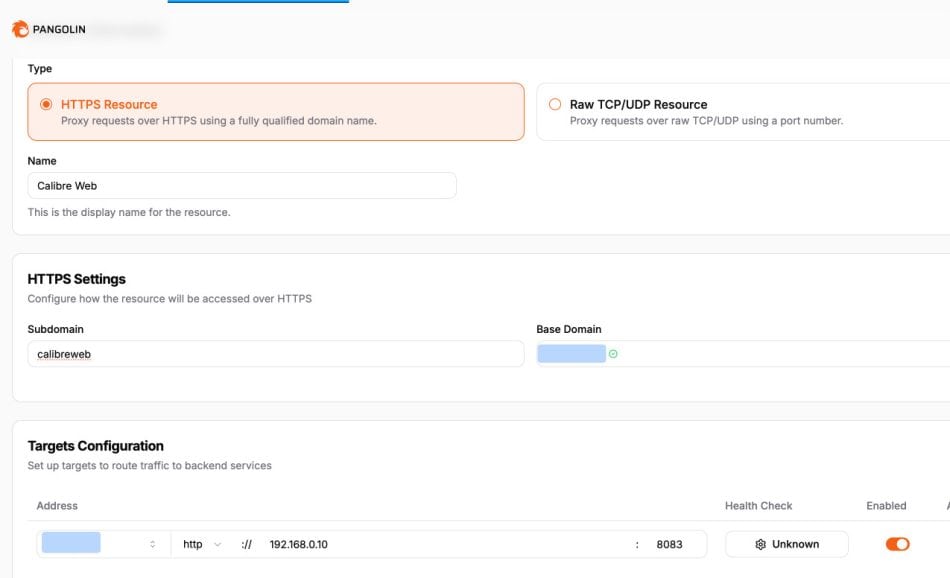
And if it works…. I can now access the Calibre Web over the Internet with my Domain I had purchased and set up in Cloudflare (and Pangolin) !
Step 8 : Set up Security for the RESOURCE
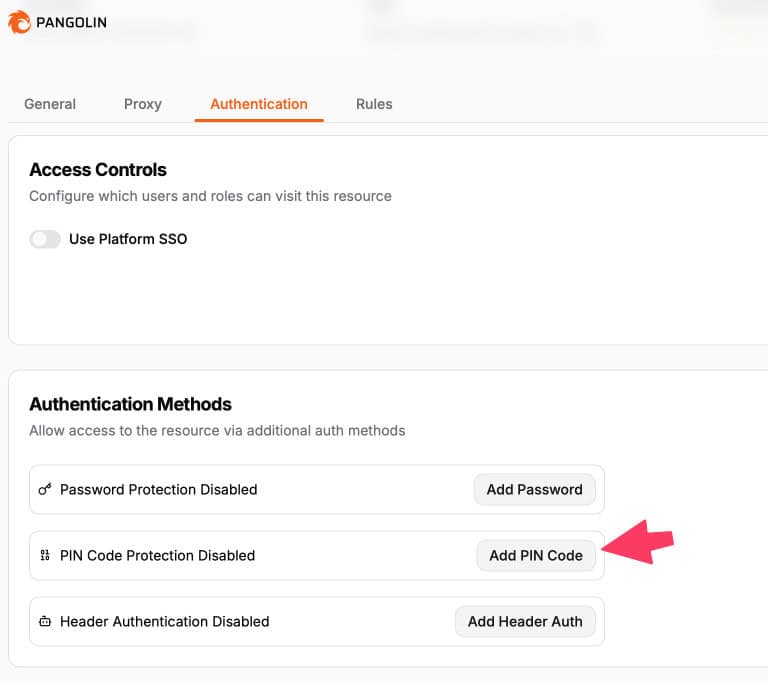
Now obviously I don’t want to just expose it without some form of security and Pangolin has quite a few methods. I just go with a PIN number.
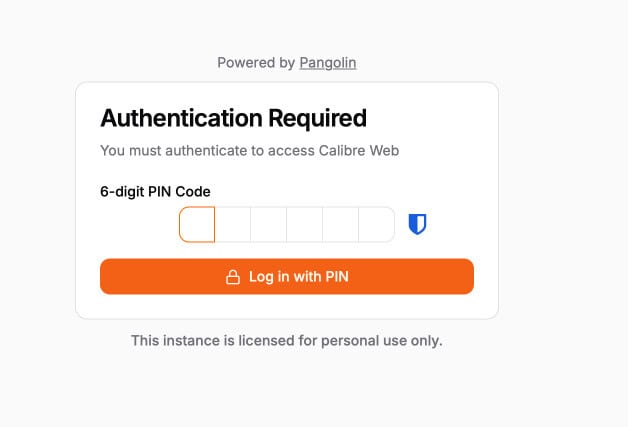
And now when you go to Calibre Web public internet URL, you need to enter a PIN.
There are many methods to secure it. You can google and read about them. I am too lazy.
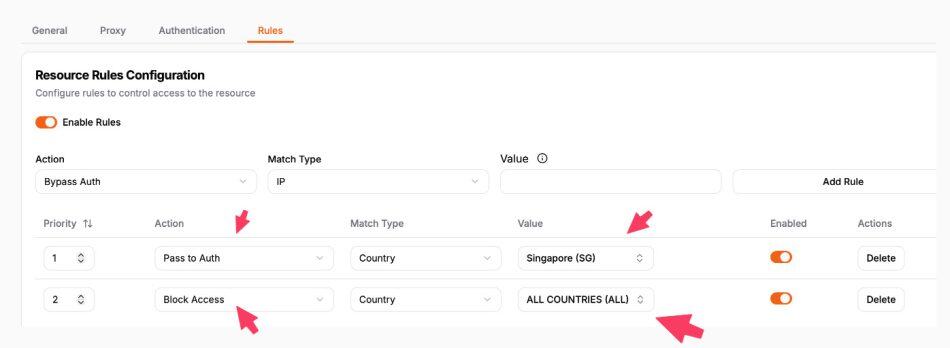
Another important way is to do Geoblocking. Watch the Youtube. For example, I allow Singapore access to reach the application (but still need to use above PIN code) but block all other countries. Don’t call me xenophobic, PAP !
That’s it ! There are many other ways to use Pangolin and I encourage you to watch Youtube videos on them.
And in case you are wondering, the Crowdsec is working too when we do a few checks using these commands. Of course, it can get even more complicated but I am happy as it is for now. Will play around more.
sudo docker exec -it crowdsec cscli bouncers list

sudo docker exec crowdsec cscli metrics

sudo docker exec crowdsec cscli decisions list
Advantages of installing Pangolin on Oracle Cloud
The main advantage of installing Pangolin on Oracle Cloud is that Oracle Cloud provides a free VPS !
And also unlike Tailscale, you don’t have to make your users (e.g. your mum) to install a Tailscale client ! It is quite painful and you can now just give a public facing URL that you have purchased from Cloudflare or Go Daddy or Namecheap to your family members. Of course you will need to give a PIN code to that application too.
And you can set up as many apps as you want with the wildcard subdomains !
Hope you enjoy this short article on installing Pangolin on Oracle Cloud.