

As you might be aware, Oracle Cloud offers a free VPS and recently I managed to get one for try out the free Pangolin reverse proxy. That’s a separate article for another day. Today, as part of hardening the VPS obtained from Oracle Cloud, I want to change SSH port for Oracle Cloud.
Table of Contents
By default, Oracle Cloud allows for SSH through the usual Port 22. You can see this in the instance set up, under Virtual Cloud Networks and then Security and the default security list.
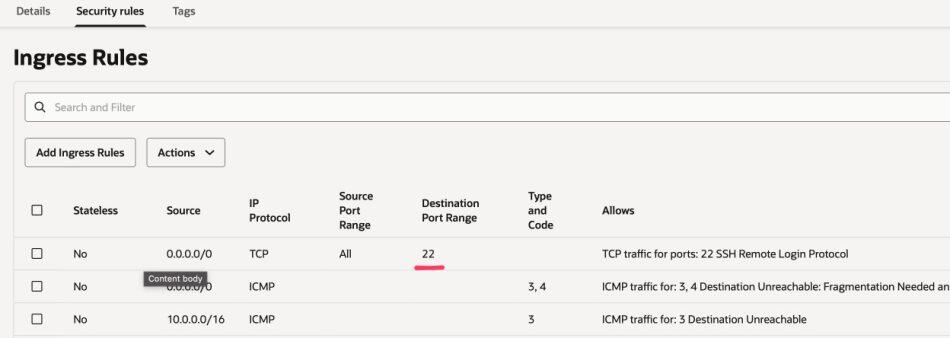
It is highly recommended to change that SSH port to something only you know. In many Linux hardening guides and YouTube Videos, you can see that it is pretty easy to just change the default SSH port in the sshd_config file. But not so for Oracle Cloud. There are slightly more steps involved.
As part of onboarding the new instance in Oracle Free Cloud, you will most likely also be using the SSH keys anyway, which is already a good security measure compared to using passwords. But to change the default SSH port of 22 to something else takes it to a higher level. So let’s try that out.
Steps to change SSH port for Oracle Cloud
The Linux distribution, Ubuntu on Oracle Cloud, uses iptables instead of ufw (UFW (Uncomplicated Firewall)), which means manually changing the SSH port in /etc/ssh/sshd_config is not enough. We also need to update firewall rules accordingly.
As a start, please open two terminals to the server for safety sake. You might make a mistake and lock yourself out.
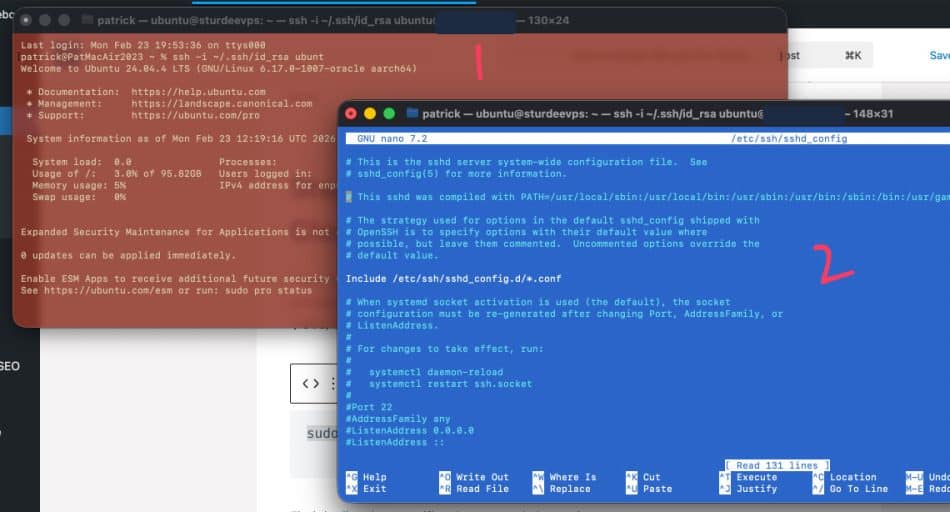
Step 1 : Edit the SSH Configuration File to change SSH port for Oracle Cloud
sudo nano /etc/ssh/sshd_configFind the line that specifies the port and change it:
Port 22 # Replace with your desired port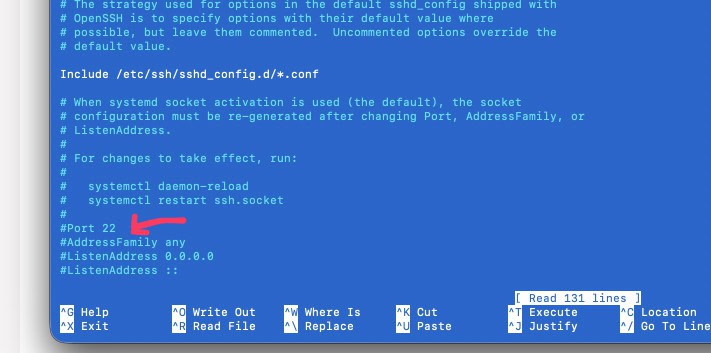
Un-comment the line and change the port to something you want. Save the file (using Ctrl+X).
Step 2 : Allow the New SSH Port in iptables
Next let’s check the iptable settings in Oracle Cloud:
sudo iptables -L INPUT --line-numbersWhich will show you the iptables listing so as to check existing rules and determine the correct line number.

Next add this line to add.
sudo iptables -I INPUT 5 -p tcp --dport 2222 -m state --state NEW -j ACCEPT🔹 The number 6 represents the position where this rule should be inserted. It must be placed above the reject-all rule. The “2222” is your desired new port. To place the new line above the reject-all rule, simply use the existing line and the older line will move down one line.
Step 3 : Save the iptables Configuration
With this command
sudo netfilter-persistent saveStep 4 : Restart the SSH Service
sudo systemctl restart sshStep 5 : Updating Oracle Cloud Firewall Rules
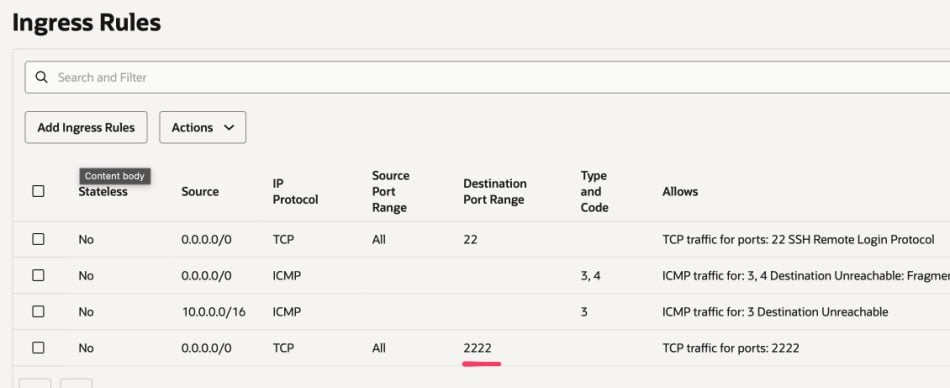
After configuring iptables, you must also update the security rules in the Oracle Cloud web portal:
- Navigate to:Networking > Virtual Cloud Networks > [Your VCN] > Security Lists > [Default Security List]
- Click Add Ingress Rules and enter the following:
- Source Type: CIDR
- Source CIDR:
0.0.0.0/0 - IP Protocol: TCP
- Source Port Range: All
- Destination Port Range:
2222(or the port you set in SSH and iptables)
- Save the changes.
Step 6 : Connecting via SSH
Now, you can connect using the new port:
ssh -i ~/.ssh/id_rsa -p 2222 ubuntu@your-public-ipwhere 2222 is your desired port.
If it does not work, on some newer Ubuntu versions (22.10 and later), you might need to run the following commands:
sudo systemctl daemon-reload
sudo systemctl restart ssh.socket
You don’t need to reboot the server for the above to work. So please don’t do that.
Step 7 : Cleaning Up Old Rules
Once you’ve successfully connected using the new port, you can remove the old rule for port 22:
sudo iptables -D INPUT 8🔹 Replace 8 with the correct line number for the old port 22 rule (check using iptables -L INPUT --line-numbers).
You may also remove the old Ingress Rule for port 22 in Oracle Cloud’s security settings.
However, I noticed that I don’t really have to do that as trying to log on without any ports will fail.
ssh: connect to host xxx.xxx.xxxx.xx port 22: Connection refusedConclusion
Oracle Cloud is really a little different from normal VPS Ubuntu set up. But the above should get you into changing the SSH port for Oracle Cloud. At least it worked for me.
Actually, Amazon Lightsail is so much easier 🙂
